
PrinterShare Mobile Print
Mobile DynamixBusiness
4.123.62K Reviews
- Version
- 12.25.0
- Installs
- 10.00M
- Age Rating
- Everyone
Screenshots
Our Review of PrinterShare Mobile Print
 Analysis by Appyee
My first question when I need a paper copy is usually not about the printer: it’s where the file ended up. A form may be in an email, a receipt in cloud storage, and a photo in the phone gallery. PrinterShare Mobile Print is most useful when I want to bring those scattered items together and send them from my Android device to a printer without moving everything to a computer first. It is a business-oriented app from Mobile Dynamix, but the same workflow suits everyday home printing.
Start with the file, not the printer
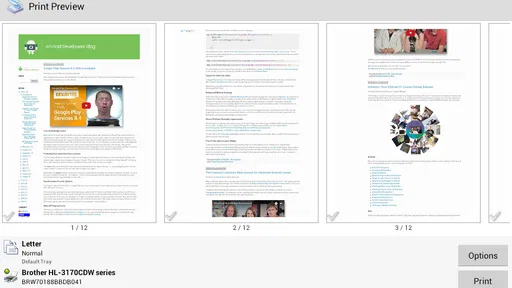
Before opening a print app, I find it helps to check the source document on the phone. For a form or itinerary, I open the PDF and look at the page count and layout; for a photo, I decide whether I need a full-size print or a smaller image on a sheet. This small check matters because a document that looks tidy on a phone screen can use a different page layout when printed. PrinterShare gives me controls for page selection, paper size, orientation, and quality, but those choices work best when I already know what I want the paper copy to look like.
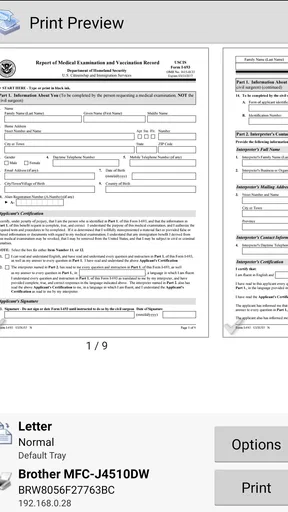
The practical appeal is that I can start with a document where it already lives, rather than saving every file to one folder and switching to a desktop. That is especially useful when I am away from my usual workspace or handling a quick task between errands. It is not a replacement for reviewing an important document carefully; I still inspect the file before sending it, since the phone’s preview and the final sheet are not always identical in how they use the page.
Getting Started with PrinterShare Mobile Print
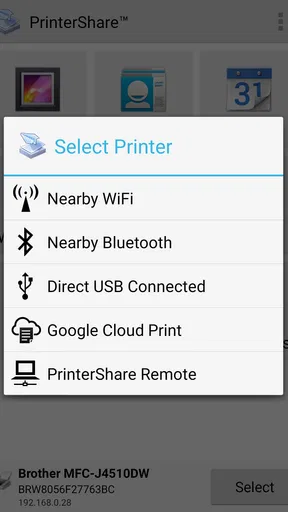
First things first, downloading PrinterShare Mobile Print is a breeze. It’s available on both Android and iOS, so you’re covered no matter what device you’re rocking. Once you’ve installed it, the app guides you through a straightforward setup process. You’ll need to connect it to your printer, and you can do this via Wi-Fi, Bluetooth, or even USB. How cool is that? No more fussing around with cables and drivers.
Features That Make Life Easier
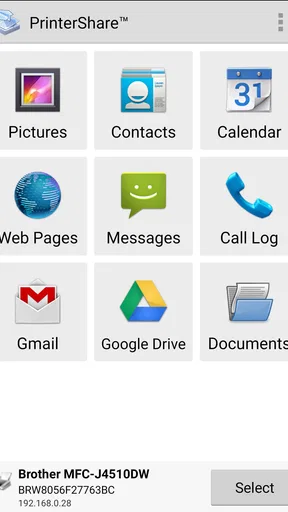
Now, let's dive into the features. The app supports a wide range of file types. Whether it's a PDF, a Word document, or even a photo, you name it, PrinterShare can handle it. You can print directly from your phone’s gallery, email, or cloud storage services like Google Drive and Dropbox. It’s like the Swiss Army knife of printing apps.
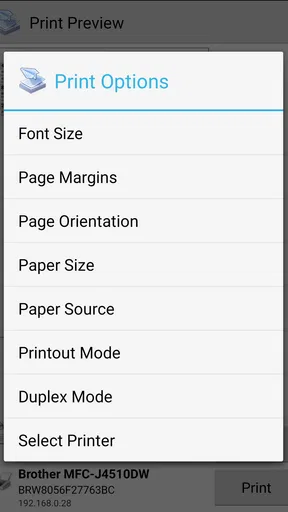
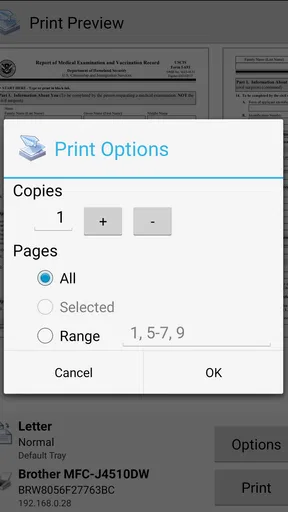
One feature I absolutely love is the ability to print multiple copies and choose specific pages. So, if you’re printing a 20-page document but only need pages 5 to 10, PrinterShare has got your back. Plus, you can tweak settings like paper size, print quality, and orientation. It’s all about giving you control over your printing.
Performance and User Experience
Let’s talk about performance. The app is smooth and responsive, with minimal lag, which is super important when you’re in a hurry. The interface is intuitive, with a clean layout that’s easy to navigate. Even if you’re not tech-savvy, you’ll get the hang of it in no time. I didn’t encounter any crashes or bugs during my testing, which is a big win in my book!
One thing that stood out to me is the app's consistent performance across different printers. Whether you’re using an HP, Canon, or Epson, PrinterShare plays nice with pretty much all of them. It’s like having a universal translator for your printing needs.
Getting the handoff right
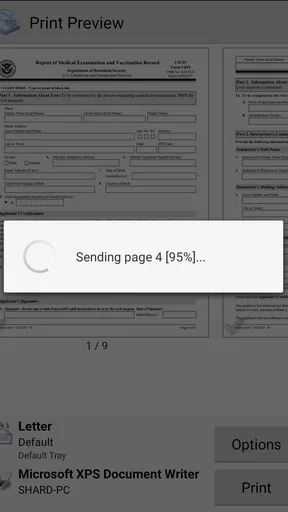
The most useful habit I’ve picked up is to treat the print as a short handoff: phone to app, app to printer, then paper to whoever needs it. For an appointment form, I check that the right pages are selected, choose the orientation that matches the document, and only then send the job. If I’m printing a photo to share, I check the quality setting rather than assuming the default will suit a keepsake. A few seconds spent on those choices can save paper and avoid a second trip back to the printer.
There is also a practical difference between printing while I’m near the printer and sending something remotely. A nearby printer makes it easier to notice whether the paper is loaded and collect the pages straight away. Remote printing is handy when the printer is somewhere else, but it shifts the final check to another person or another location. I would use that for a routine document, not for a time-sensitive form that must be checked and handed over immediately.
Everyday jobs where it earns its place
Picture a common weekday: I’m asked to bring a signed form to an appointment, but the file is in an email and I’m already away from my desk. I can open the attachment on my phone, choose only the pages I need, set the layout, and print it instead of forwarding the file to myself and finding a computer. The value here is not that printing becomes effortless; it is that the phone can stay the starting point from file selection through to a usable paper copy.
The same approach works for a boarding document, a work handout, or a few family photos. For a longer packet, I would print a small, relevant page range rather than blindly sending the whole file. For photos, I would use the controls deliberately and remember that a phone display is not a reliable promise of how color and cropping will look on paper. Those are simple decisions, but they make a mobile print workflow more predictable.
Where it sits among printing options
Many printer makers offer their own companion apps, and those can be a better first choice if you mainly use one brand’s printer and want its particular tools. A phone’s built-in print option can also be quicker when it already recognizes the printer and the task is just one straightforward page. I reach for PrinterShare when I want one app to handle files from different places and prefer not to change my routine every time I print from email, storage, or the gallery.
That flexibility has a trade-off: a broad compatibility pitch does not remove the need to check the actual connection and print settings for the printer in front of you. If the printer is not visible, the connection method or local setup may be the real obstacle, rather than the file itself. I would not choose this app as a way to fix a printer that is offline, out of paper, or otherwise unable to accept a job. It helps with the phone-to-printer part; it cannot take care of the physical printer for you.
Features That Make Life Easier
Now, let's dive into the features. The app supports a wide range of file types. Whether it's a PDF, a Word document, or even a photo, you name it, PrinterShare can handle it. You can print directly from your phone’s gallery, email, or cloud storage services like Google Drive and Dropbox. It’s like the Swiss Army knife of printing apps.
One feature I absolutely love is the ability to print multiple copies and choose specific pages. So, if you’re printing a 20-page document but only need pages 5 to 10, PrinterShare has got your back. Plus, you can tweak settings like paper size, print quality, and orientation. It’s all about giving you control over your printing.
Free to try, with a cost to weigh
The app is free to install, and in-app purchases range from $6.99 to $9.99 per item. I would start with the free experience and decide based on the kind of printing I actually do, rather than paying just because the option is there. If I print only now and then, a printer’s own app or the phone’s built-in option may already be enough. If I regularly need PrinterShare’s particular workflow, I would weigh the purchase against that repeated convenience instead of treating it as a must-have.
The store describes the app as suitable for Everyone, and it has a 4.1 average from around 196,000 ratings, with over 10 million installs. Those numbers suggest that many people have tried it, but they do not tell me whether my own printer setup will be smooth. The current version is 12.20.0, and Android users need version 6.0 or later. I would check those basics before installing, especially on an older device.
When I would choose another route
I would skip this app if my printing needs are rare, my printer already works smoothly with its manufacturer’s app, or I need a polished desktop workflow for complex documents. For a large report where exact margins, page breaks, and final formatting matter, I prefer to review the file on a computer before printing. A phone is convenient for selecting and sending a known-good document, but it is a less comfortable place to make careful layout decisions across many pages.
It is also not the right tool when the main problem is at the printer: an empty tray, a jam, a disconnected network, or a setting that needs attention on the machine itself. Mobile printing can reduce the number of steps between a file and paper, but it cannot remove those real-world dependencies. My best results come when the printer is ready, the right file is easy to find, and I take a moment to check the output choices before sending.
Performance and User Experience
Let’s talk about performance. The app is smooth and responsive, with minimal lag, which is super important when you’re in a hurry. The interface is intuitive, with a clean layout that’s easy to navigate. Even if you’re not tech-savvy, you’ll get the hang of it in no time. I didn’t encounter any crashes or bugs during my testing, which is a big win in my book!
One thing that stood out to me is the app's consistent performance across different printers. Whether you’re using an HP, Canon, or Epson, PrinterShare plays nice with pretty much all of them. It’s like having a universal translator for your printing needs.
Cost and Accessibility
PrinterShare offers a free version, but if you’re a frequent printer like me, you might want to consider the premium version. It unlocks additional features like unlimited remote printing and removes ads. The cost is reasonable, especially considering the convenience it offers. Think of it as an investment in stress-free printing.
The remote printing feature is particularly handy if you need to send documents to a printer that’s not in the same location as you. Imagine sending your documents to the office printer while you’re chilling at home. That’s the kind of magic we’re talking about here.
Final Thoughts
So, is PrinterShare Mobile Print worth it? In my opinion, absolutely. It's a powerhouse of a printing app that makes your life easier in more ways than one. Whether you’re printing last-minute documents for a meeting or personal photos to decorate your home, this app has you covered. It’s reliable, easy to use, and packed with features that cater to all your printing needs.
If you’re ready to take the plunge, you can download PrinterShare Mobile Print from the app store and start experiencing the convenience for yourself. Trust me, once you start using it, you’ll wonder how you ever lived without it.
Verdict
Strengths of PrinterShare Mobile Print
- Seamless integration with cloud services.
- Wide range of printer compatibility.
- User-friendly interface design.
- Fast printing with minimal setup.
- Supports various file formats.
Limitations of PrinterShare Mobile Print
- Free version has limited features.
- Occasional connectivity issues.
- Some printers require manual setup.
- User interface feels outdated.
- Subscription fees can be high.
Other Releases by Mobile Dynamix
View All
PrinterShare Premium Key
Business4.4

CrossMe Color Premium Nonogram
Puzzle4.8
Similar Picks in This Category
View All
LinkedIn: Community & Network
LinkedIn3.8

Zoom Workplace
zoom.com4.1

Microsoft Teams
Microsoft Corporation4.6

Meta Business Suite
Meta Platforms, Inc.4.6

Webex Meetings
Cisco Systems, Inc.4.5

TeamViewer Remote Control
TeamViewer4.4
Frequently Asked Questions
What devices are compatible with PrinterShare Mobile Print?
PrinterShare Mobile Print is compatible with both Android and iOS devices. It supports a wide range of smartphones and tablets, making it versatile for users across different platforms. To ensure compatibility, check your device’s operating system version and ensure it meets the app’s requirements.
Can I print documents from cloud storage using PrinterShare Mobile Print?
Yes, PrinterShare Mobile Print allows you to print documents directly from cloud storage services like Google Drive, Dropbox, and OneDrive. This feature provides convenience by enabling you to access and print your files from anywhere without needing a physical connection to your printer.
Is PrinterShare Mobile Print free to use, or are there any costs involved?
PrinterShare Mobile Print offers both free and premium versions. The free version provides basic printing capabilities, while the premium version unlocks additional features such as unlimited remote printing and advanced print settings. Users can opt for in-app purchases to access these premium features.
What types of files can I print using PrinterShare Mobile Print?
PrinterShare Mobile Print supports a variety of file types, including PDF, Word, Excel, PowerPoint, text files, and images. This extensive range ensures that users can print most of their documents and photos directly from their mobile devices, enhancing productivity and convenience.
How secure is printing with PrinterShare Mobile Print?
PrinterShare Mobile Print prioritizes user security by implementing secure connections and data encryption. When printing remotely or over the cloud, your documents are transmitted securely to prevent unauthorized access. Users are encouraged to regularly update the app to benefit from the latest security enhancements.
